Embedding Ungraded Activities in Canvas
Deck owners can also embed ungraded SmartyCards activities into any Canvas page.
This is a great option for instructors who want to provide students with easy access to practice activities without setting up formal assignments or grade passback.
INFO
For graded assignments with automatic grade passback to the Canvas gradebook, see Using with Canvas (LTI Integration).
Step by Step
To embed into a Canvas page:
Go your the SmartyCards deck, and click
Share.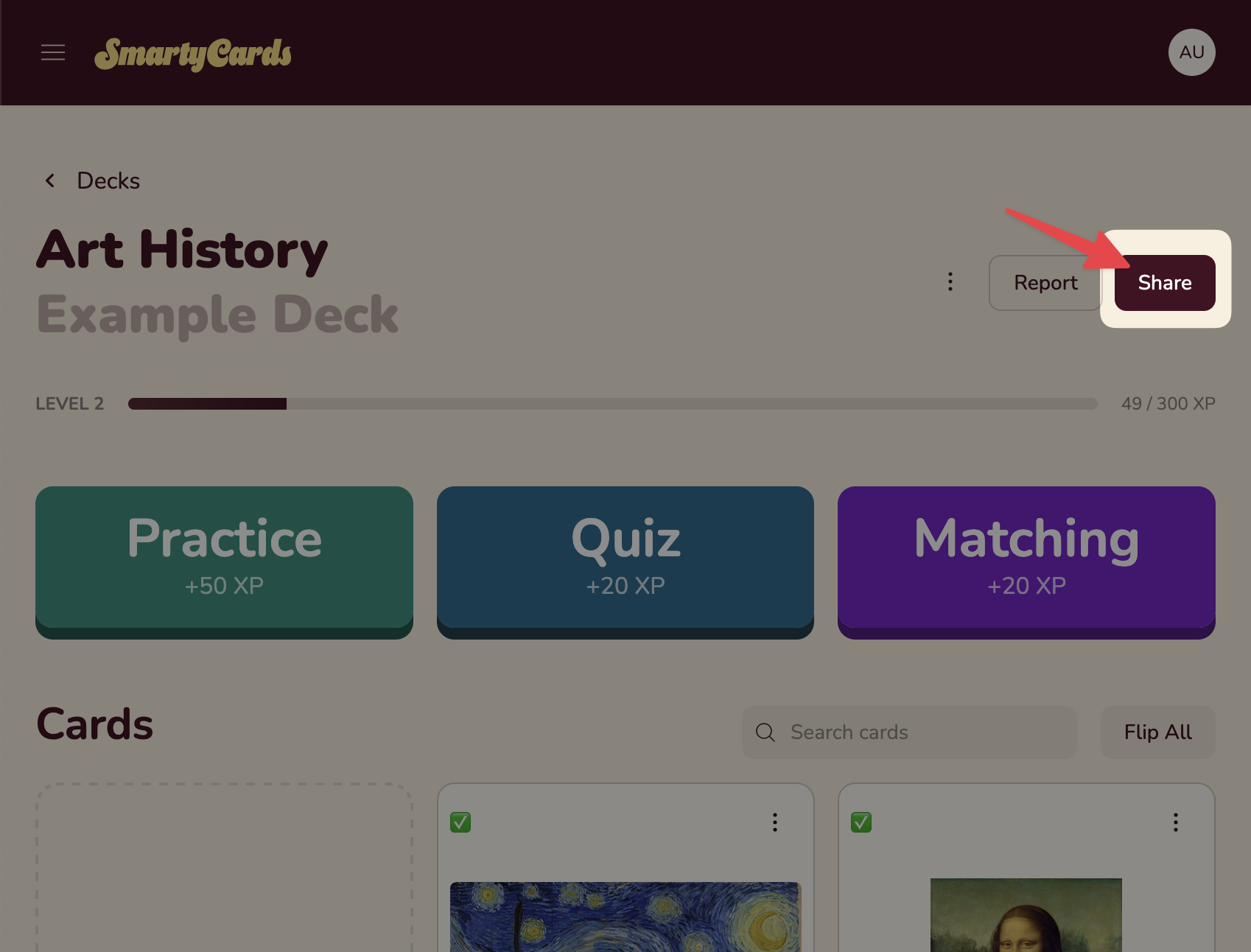
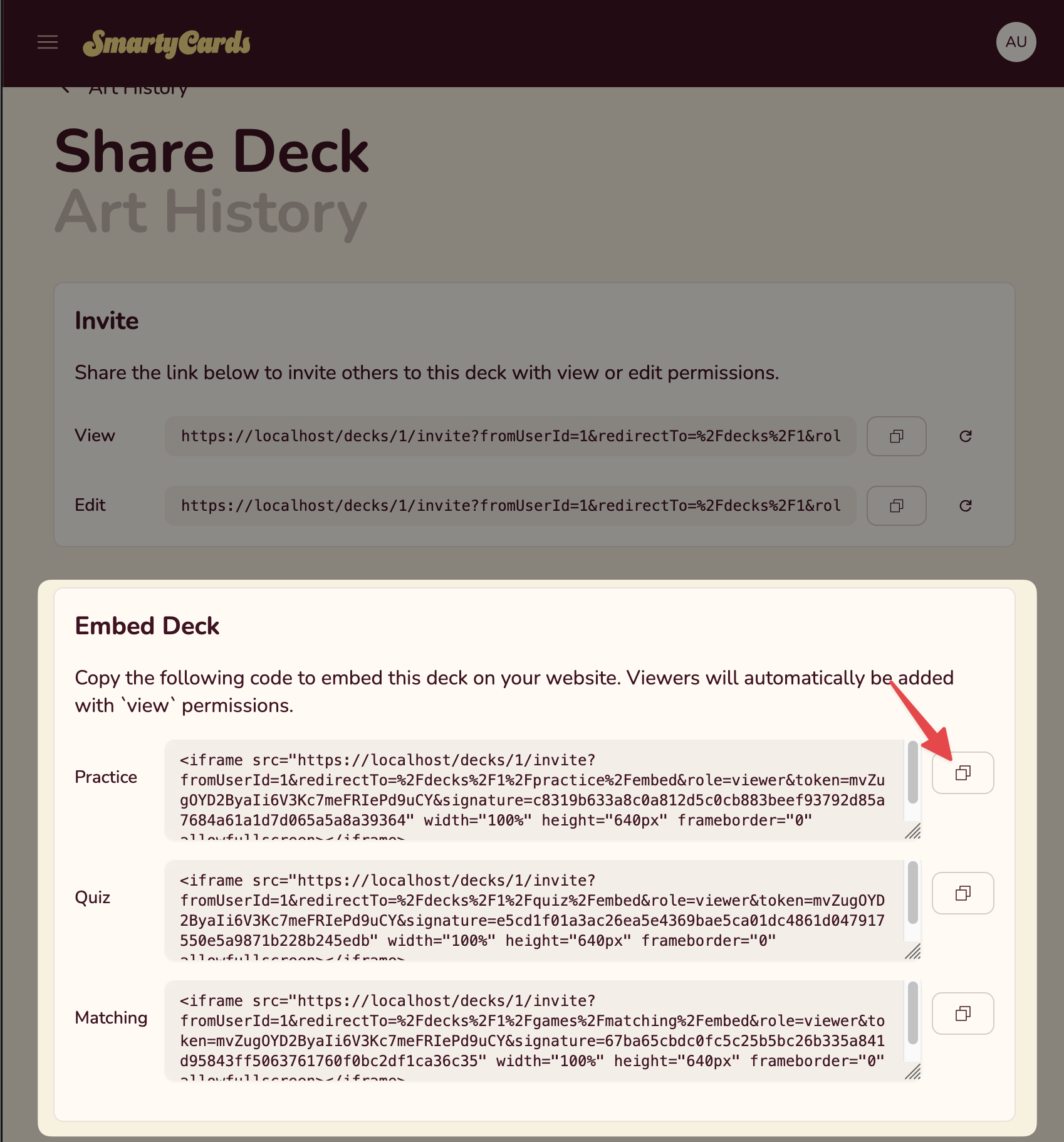
On the Share page, find the Embed Deck section. You will see embed code for each deck activity: Practice (Flashcards), Quiz, Matching. Copy the embed code of the activity you wish to embed in Canvas.
Now, go to your Canvas classroom, and create or choose the page to place the embed:
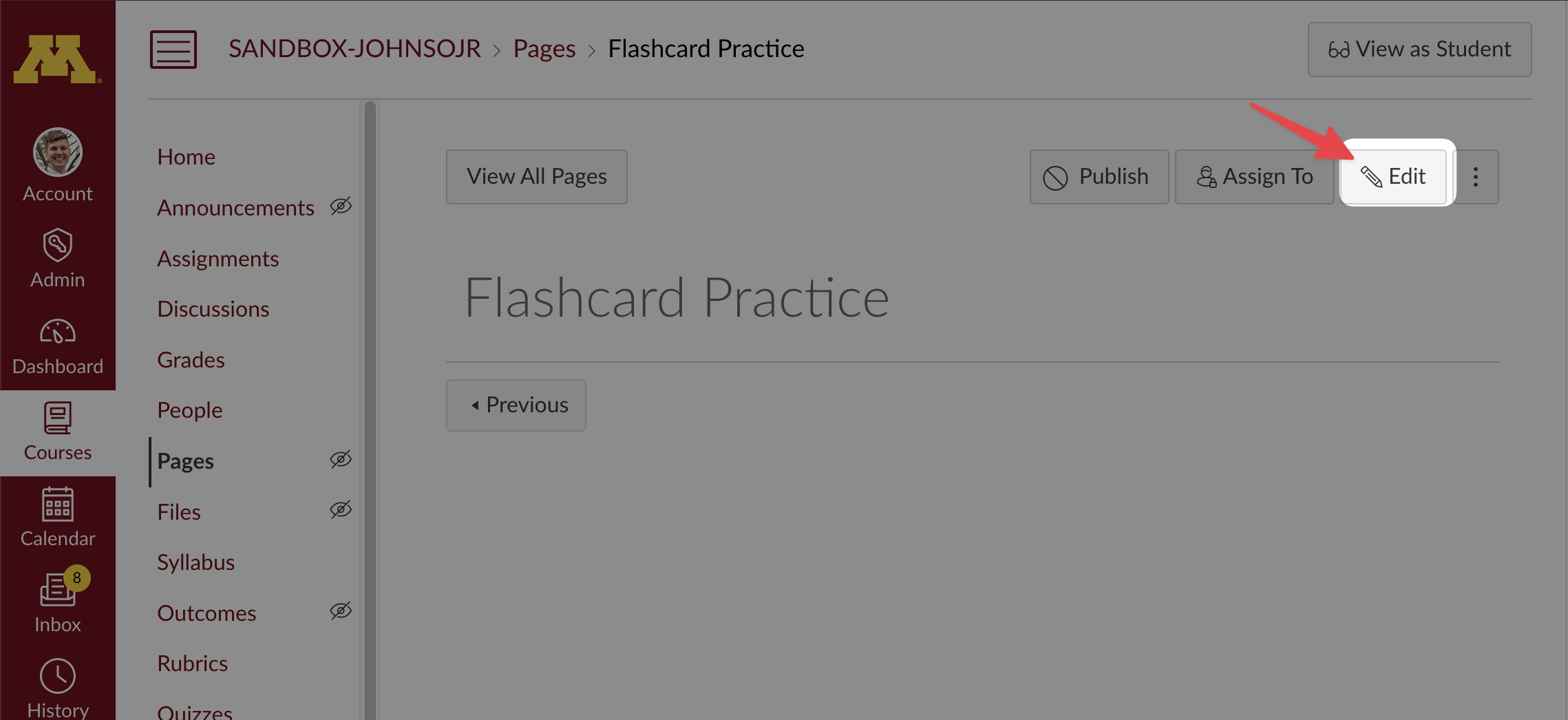
In the editor, click the
</>HTML Editor icon, to switch to HTML mode: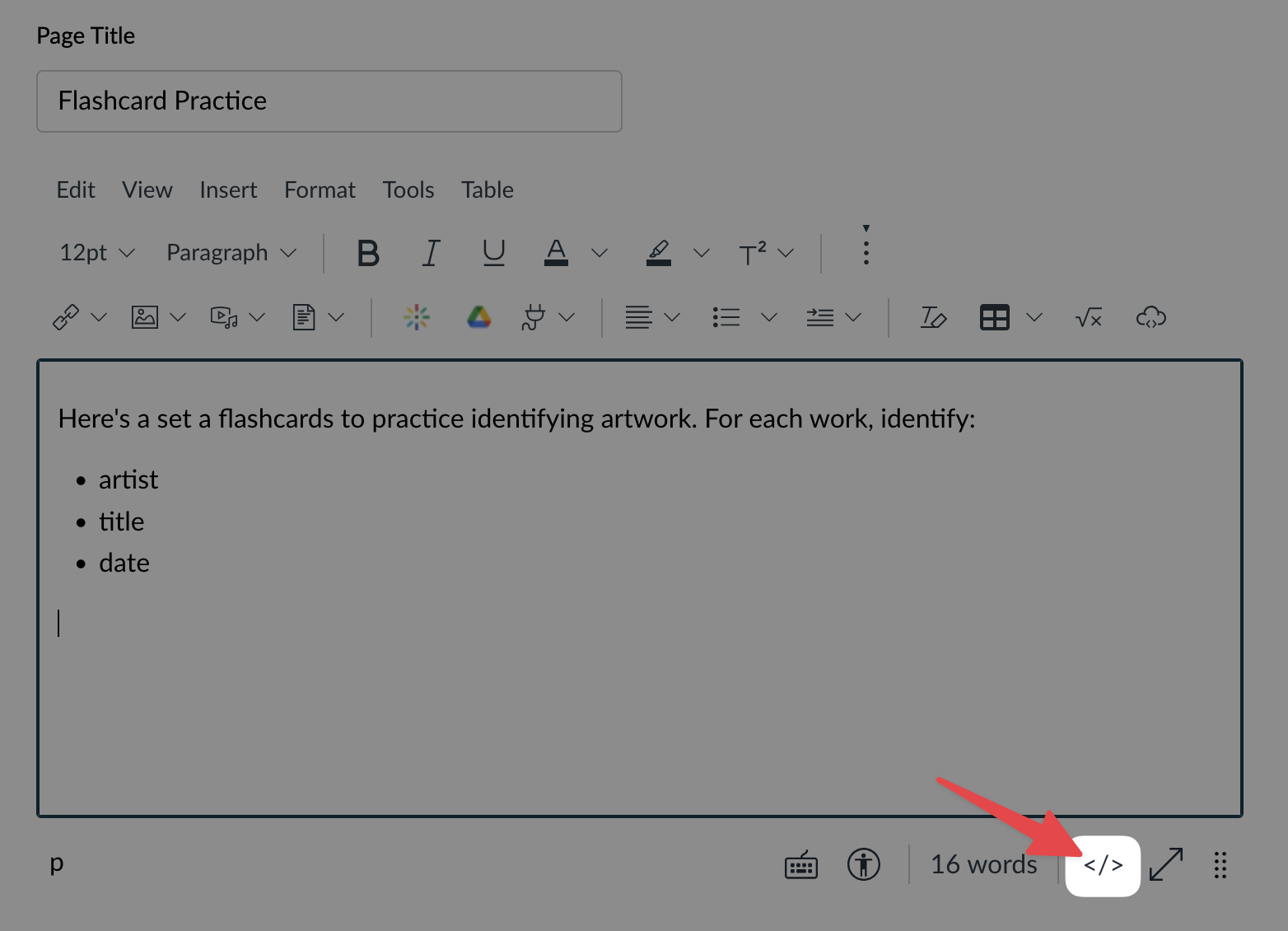
At the bottom, paste your embed code:
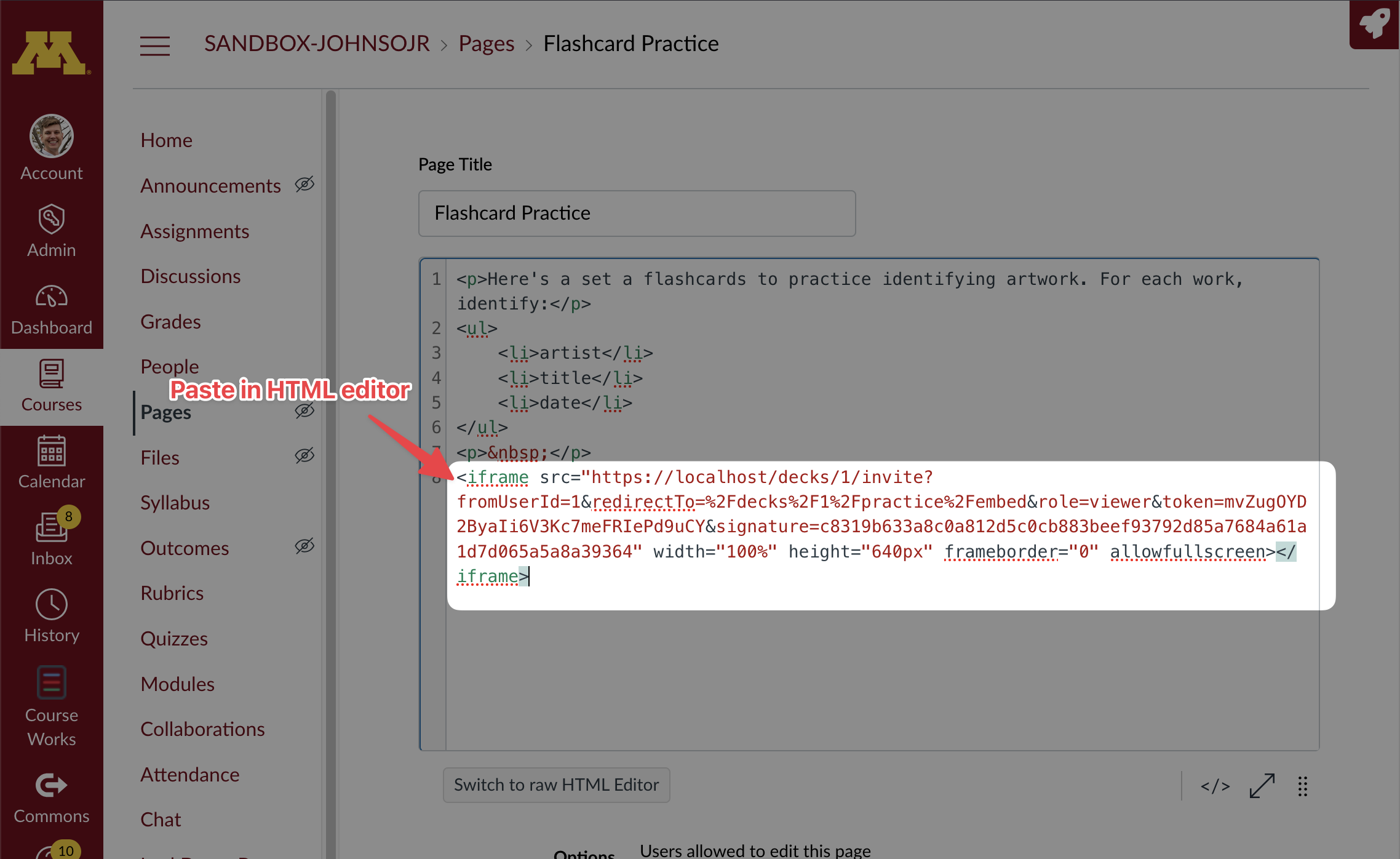
Click
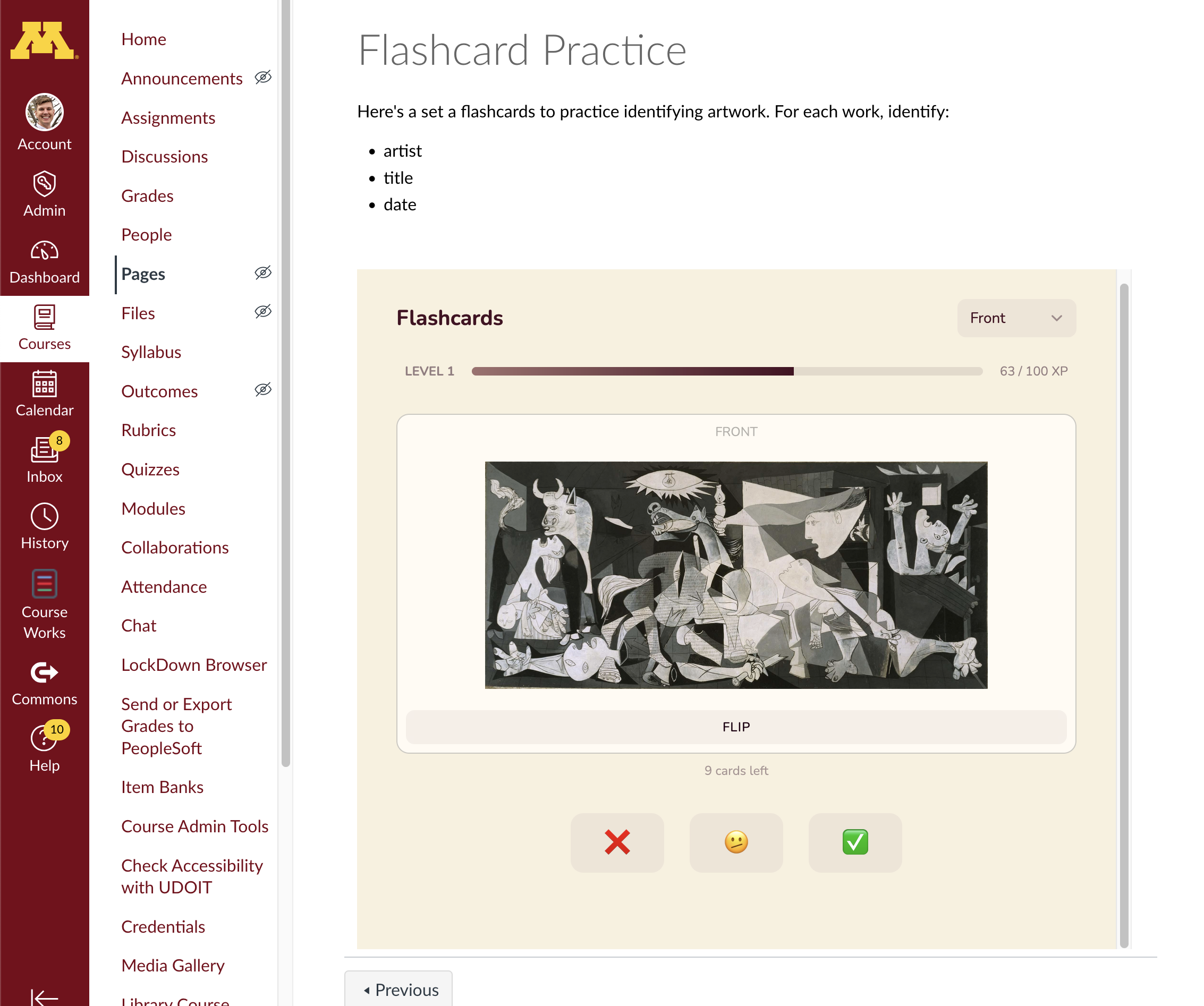
Save. Then you should see your embedded SmartyCards activity. (Or you may see page to sign-in to smartycards first, which will redirect you to the activity):